WINDOWS & LINUX v0.1.0b3 · OPEN-SOURCE DONATIONWARE
Give your AI a computer.
Your AI. Your computer. Your control.
Aster Universal MCP connects compatible AI assistants to a persistent computing environment you own. Turn conversations into practical work, with your files, your tools and your permission.
MCP · Model Context Protocol — an open protocol for connecting AI models to external tools, data sources, and systems (like the Aster Universal MCP connector).
WINDOWS · v0.1.0b3
Windows Beta is here.
Aster Universal MCP v0.1.0b3 is the shared Windows and Linux onboarding beta, with a separate source archive for each platform. Keep a trusted local administrator terminal available.
- Download the ZIP, SHA256SUMS.txt and Windows acceptance report from the same release. Compare the complete ZIP hash before extraction.
- Extract into a new, empty source folder. Follow the guide for a fresh runtime-only Python environment and elevated manual startup. Keep work files outside the frozen source.
- Route your own HTTPS hostname to http://127.0.0.1:18767. Confirm verified_running locally, then complete OAuth pairing. A running or paired gateway does not grant administrative access.
- From the verified source folder in a trusted elevated PowerShell terminal, run the clients command first. Inspect the exact client ID and callback, then replace EXACT_CLIENT_ID in the approve command for that registration only. Run these commands separately.
powershell.exe -NoProfile -ExecutionPolicy Bypass -File .\scripts\manage-client-windows.ps1 -Action clients powershell.exe -NoProfile -ExecutionPolicy Bypass -File .\scripts\manage-client-windows.ps1 -Action approve -ClientId 'EXACT_CLIENT_ID' - From the same connector, call connection_status with {}. Check its client ID, approved status, permissions and workspace. Valid OAuth credentials with system:admin scope are required; local approval cannot add a missing scope.
- Use execute_command for separate hostname.exe and whoami.exe calls, omitting cwd. Require completed status, exit_code 0 and the expected host/account output. Setup is complete only after these calls succeed.
Verify your download in PowerShell
Get-FileHash -LiteralPath .\aster-universal-mcp-0.1.0b3-windows.zip -Algorithm SHA256Expected Windows ZIP SHA-256
2863b818010792711f45c47dbd817da3dc4c475e0ec625c080c6d568e3185d4aTested scope
Reference: Windows 11 Enterprise Evaluation build 26300, Python 3.11.9 x64 and a manually started SYSTEM gateway behind HTTPS. The exact b3 artifact passed 126 native tests plus 7 subtests (5 skips), a fresh runtime-only install and 38 controlled public HTTPS stages. These evidence layers overlap.
The owner waived repeating the actual Claude-account test for b3. No fresh b3 account success is claimed. Every new installation still needs the approval and successful native-command checks above.
Directory listing requires local approval and can use absolute paths such as C:\ or C:\Windows with the gateway account’s permissions. “.” and relative paths start at the workspace. A cd command does not persist across calls. Listings return at most 100 entries; a truncated sample has no exact total.
Manual technical beta: no graphical installer, Windows service or automatic reboot startup. Commands inherit the gateway account’s privileges; the workspace does not confine their filesystem access. Removing a grant or stopping the gateway does not undo work, revoke an OAuth credential family or automatically cancel accepted jobs. Other Windows builds, Python versions and macOS are not qualified.
Existing Windows b1 and Linux b2 releases remain available unchanged. They do not gain b3 features automatically; install and verify an upgrade separately while preserving working connections.
Release files & evidence
- Shared b3 release ↗
- SHA-256 checksums ↗
- Frozen release notes ↗
- Windows acceptance (JSON) ↗
- Windows test evidence (ZIP) ↗
- Release/operator guide ↗
- Complete onboarding ↗
- Merged pull request #4 ↗
- Previous Windows b1 ↗
- Previous Linux b2 ↗
- Public repository ↗
Include v0.1.0b3, Windows/Python versions, the failed step and redacted output. Never include OAuth databases, pairing codes, tokens or tunnel credentials.
LINUX · v0.1.0b3
Linux Beta is here.
Aster Universal MCP v0.1.0b3 is the shared Windows and Linux onboarding beta. Download the separate Linux source archive and keep independent local administrator or SSH recovery access.
- Download the Linux archive, checksums, manifest and acceptance record from the same release. Verify the complete archive SHA-256 before extraction or execution.
- Follow the guide for new, separate source, runtime-only virtual environment and protected state directories. Keep the ordinary workspace outside the frozen source.
- Forward your own HTTPS hostname to http://127.0.0.1:18768 on Linux. Start and inspect both gateway and executor with the installed protected operator. Runtime readiness does not grant a client permission.
- Complete OAuth pairing. In a trusted local administrator terminal, run clients below using the system Python. Inspect the exact client ID and callback, then replace EXACT_CLIENT_ID to approve only that registration. If your protected state path differs, adjust both the operator path and --state. Run the commands separately.
sudo /usr/bin/python3 /var/lib/aster-universal-mcp/operator-linux.py --state /var/lib/aster-universal-mcp clients sudo /usr/bin/python3 /var/lib/aster-universal-mcp/operator-linux.py --state /var/lib/aster-universal-mcp approve EXACT_CLIENT_ID - From the same connector, call connection_status with {}. Check its client ID, approved status, permissions, default_workspace and listing_base. Valid OAuth credentials with system:admin scope are required; a local grant cannot supply a missing scope.
- Use run_command for separate /bin/hostname, /usr/bin/id and /usr/bin/whoami calls, omitting cwd. Require completed status, exit_code 0 and the expected host/root output. Setup is complete only after these calls succeed.
Verify the archive on Linux
sha256sum aster-universal-mcp-0.1.0b3-linux.tar.gzExpected Linux archive SHA-256
41f7adc26cbb86b7f9d901fc537b94e59af73f116937f3acadf8003727758c74Reference: Ubuntu 24.04.5 LTS x86_64, distribution Python 3.12.3, systemd 255 and cgroup v2. The exact b3 artifact passed 151 native tests plus 7 subtests (10 skips), a fresh runtime-only install and 25 controlled public HTTPS stages. These evidence layers overlap.
The owner waived repeating the actual Claude-account test for b3. No fresh b3 account success is claimed. Every new installation still needs the approval and successful native-command checks above.
With local approval, list_directory accepts explicit absolute paths such as / or /etc wherever root can read. Without approval, or after grant removal, authenticated listing remains confined to the configured root. “.” and relative paths always use and stay within listing_base, normally the workspace. A cd command does not persist across calls.
Listings default to 100 entries, with a requested limit of 1–200. A truncated sample reports an unknown total. Status and listing require valid OAuth authentication with system:admin scope; these tools do not grant that scope or administrative permission.
Commands run as root; the workspace does not confine command access. The gateway and executor are manually started. Commands and jobs require a working system systemd manager. No service/autostart/reboot support, macOS, WSL, ARM, generic-container or broad distribution qualification is claimed.
Grant removal blocks subsequent privileged calls and restores confined listing; it does not revoke an OAuth credential family or cancel accepted jobs. To disable all remote access, use the protected operator’s disable action, verify both processes stopped and reconcile known jobs separately. Keep the independent recovery path available.
Existing Linux b2 and Windows b1 releases remain available unchanged. Linux b2 keeps listing confined even after approval and has no connection_status. B3 features require a separate verified upgrade; preserve working connections.
Release files & documentation
WATCH / EXPLORE
See the connection. Picture the possibilities.
A visual introduction to Aster Universal MCP, from the connection architecture to the idea of giving your AI a computer.
Explore the architecture
Open full-size diagram ↗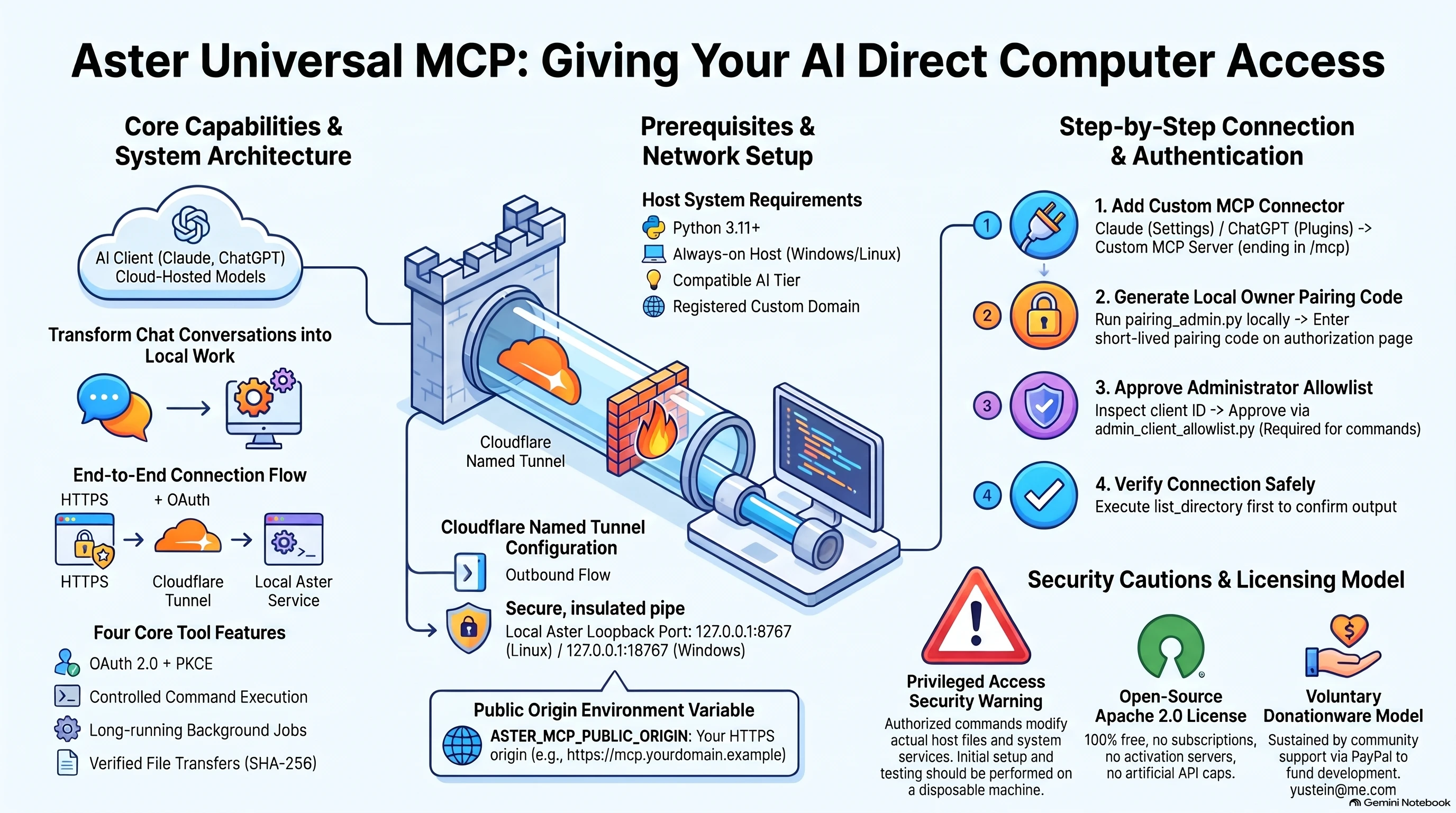
Promotional illustrations, not recordings of verified product execution. Features and setup requirements are defined by the current release documentation.
Diagram clarification: the Linux loopback port is 18768; Windows uses 18767. Existing host jobs can continue after a chat closes; this does not mean the AI can start new tasks while the chat is closed.
Read the connection guide →ASTER UNIVERSAL MCP
Good ideas deserve somewhere to work.
A chat can suggest the next step. A connected computer gives an assistant somewhere to carry it out, save the result and continue the work later.
Work with real files
Move files with chunked transfers and SHA-256 verification. Keep project output on hardware you control.
Run useful commands
Use permission-controlled execution on Windows and Linux, with OAuth pairing and an owner-managed client allowlist.
Keep jobs moving
Start background jobs, inspect progress and cancel work. A running host job is separate from an AI reasoning continuously.
FROM CONVERSATION TO COMPUTATION
- 01You choose the machine
- 02You pair and approve the client
- 03Your AI uses permitted tools
- 04The work stays on your host
Built today. Building next.
Current beta implementation
OAuth 2.0 and PKCE pairing, permission-controlled commands, background jobs and file transfers. Use the archive and installation guide for your platform. The reference environments are Windows 11 with Python 3.11 x64 and Ubuntu 24.04 x86_64 with Python 3.12. HTTPS and host administration are required; startup is manual.
The larger vision
Multiple AI assistants collaborating, memory integrations and guided server setup. These are roadmap goals, not included or verified features of the current distribution. Client compatibility must be tested individually.
Real access deserves real care.
This is a privileged administration beta. Authorized commands can change host files and services. Begin on a disposable machine and review the security documentation before connecting. No claim of universal AI-client support is made.
DONATIONWARE
Useful to you. Available to everyone.
Free for personal and commercial use under Apache License 2.0. No Aster software subscription, activation server or artificial call caps. Your AI provider, hardware, domain or hosting may have separate costs.
If you believe people should have more control over their AI tools, help us build that future. Voluntary support helps sustain development, testing and clearer documentation.
Support via PayPal
PayPal recipient
yustein@me.comUse this address in PayPal. Choose an amount that works for you. Support is voluntary and does not unlock features or guarantee a delivery date.
More ways to support are planned
Bitcoin · Buy Me a Coffee · Stripe — details will appear here when ready.
Support is more than money.
Test a release when available, report a reproducible bug, improve the docs or share the project. Every useful contribution helps.
Ask about contributing or sponsorshipMCP / HTTPS / OAUTH · v0.1.0b3
How your AI connects.
Aster runs on your Windows or Linux computer. Claude or ChatGPT connects to its HTTPS MCP address; authenticated tool requests travel through the tunnel to your local gateway. The AI model still runs with its provider.
MCP · Model Context Protocol — an open protocol for connecting AI models to external tools, data sources, and systems (like the Aster Universal MCP connector).
The connection
- 01Claude / ChatGPT
- 02HTTPS + OAuth
- 03Cloudflare Tunnel
- 04Aster on your computer
What you need
Qualified reference setups: Windows 11 with Python 3.11 x64, or Ubuntu 24.04 LTS x86_64 with Python 3.12, a functioning system systemd manager and cgroup v2. The release guide records the exact tested builds and dependencies; other environments are outside this qualification. You also need a computer that stays on, a compatible AI account and a stable HTTPS hostname. Install from the matching source archive and start the gateway manually; Linux also needs its separate executor. This beta does not install service or reboot autostart.
Use a free Cloudflare Tunnel
Cloudflare Tunnel is available on the Free plan. For a stable published hostname, you need a Cloudflare account and a domain configured on Cloudflare; the domain itself may cost money. The cloudflared program makes outbound connections, so router port forwarding and a public IP are not required.
- Create a named tunnel in the Cloudflare dashboard and install cloudflared using the command supplied for your operating system. Keep its tunnel token secret.
- Publish a hostname such as mcp.yourdomain.example and route it to HTTP on 127.0.0.1:18768 for Linux, or 127.0.0.1:18767 for Windows. Keep the Aster listener bound to loopback.
- Set ASTER_MCP_PUBLIC_ORIGIN to your HTTPS origin, without /mcp. Preserve the public Host and forwarded HTTPS scheme. Route the whole hostname, including OAuth metadata and callbacks—not only /mcp.
- Enter https://mcp.yourdomain.example/mcp in your AI client. Keep Aster and cloudflared running.
Linux:   http://127.0.0.1:18768
Windows: http://127.0.0.1:18767

ASTER_MCP_PUBLIC_ORIGIN=https://mcp.yourdomain.example
MCP: https://mcp.yourdomain.example/mcp
Quick Tunnels are temporary test tools: their hostname changes, uptime is not guaranteed and SSE is unsupported. Do not use them as the recommended OAuth setup. A Cloudflare browser-login challenge can block an AI cloud client; use Aster OAuth rather than placing an incompatible interactive login in front of MCP.
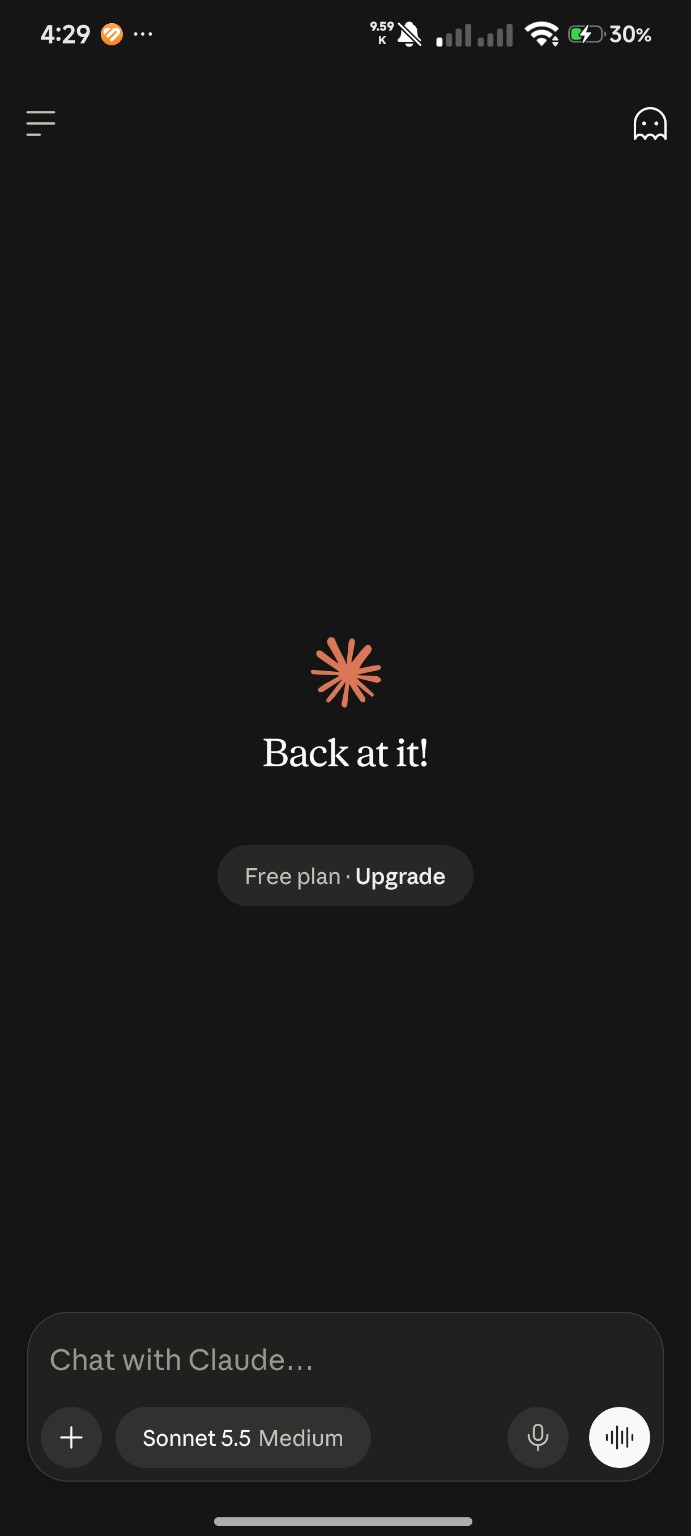
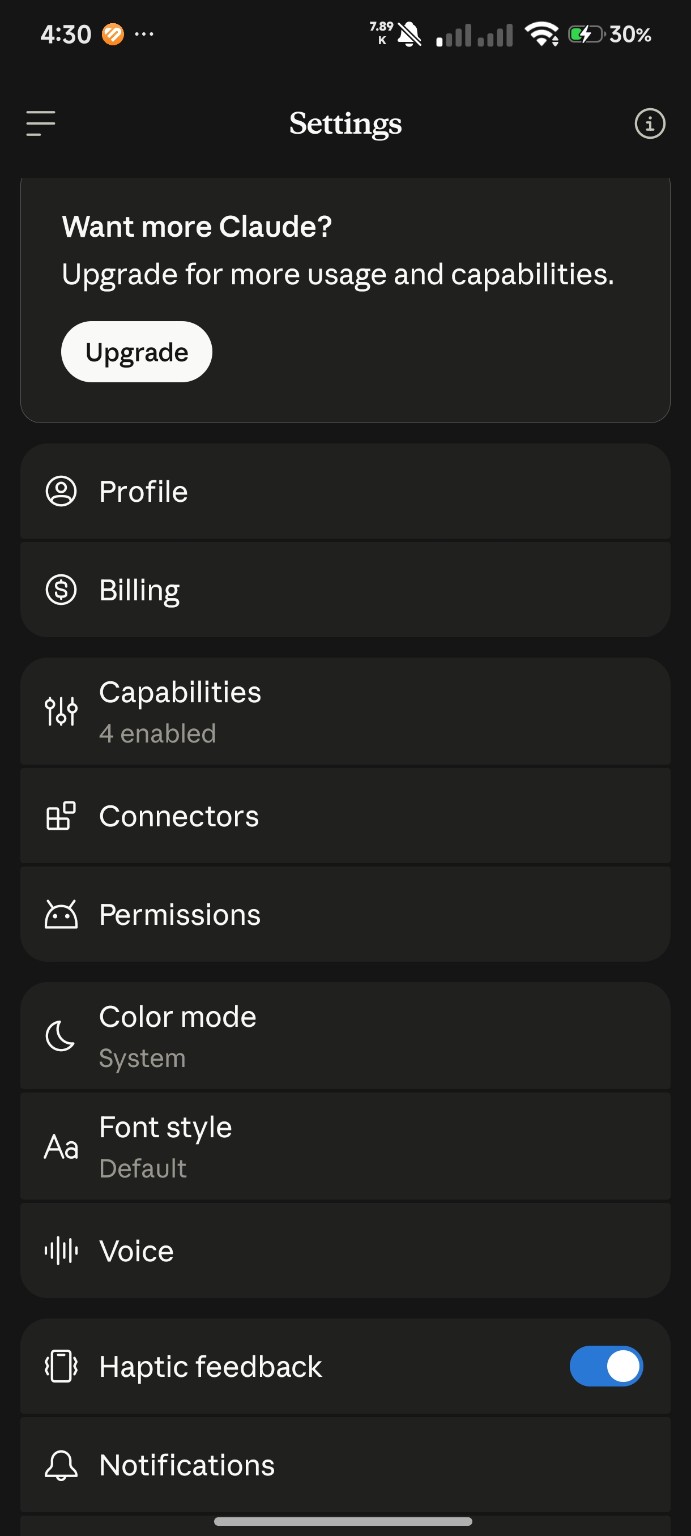
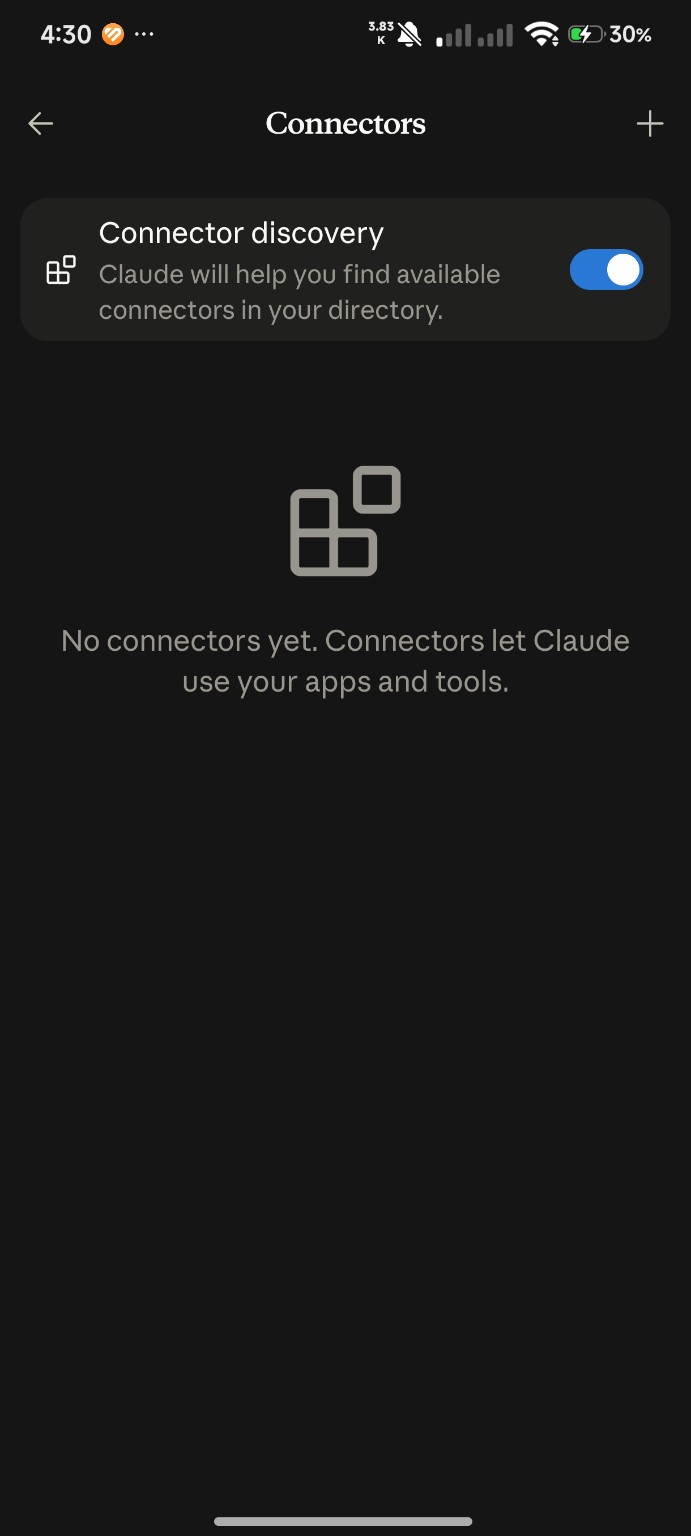
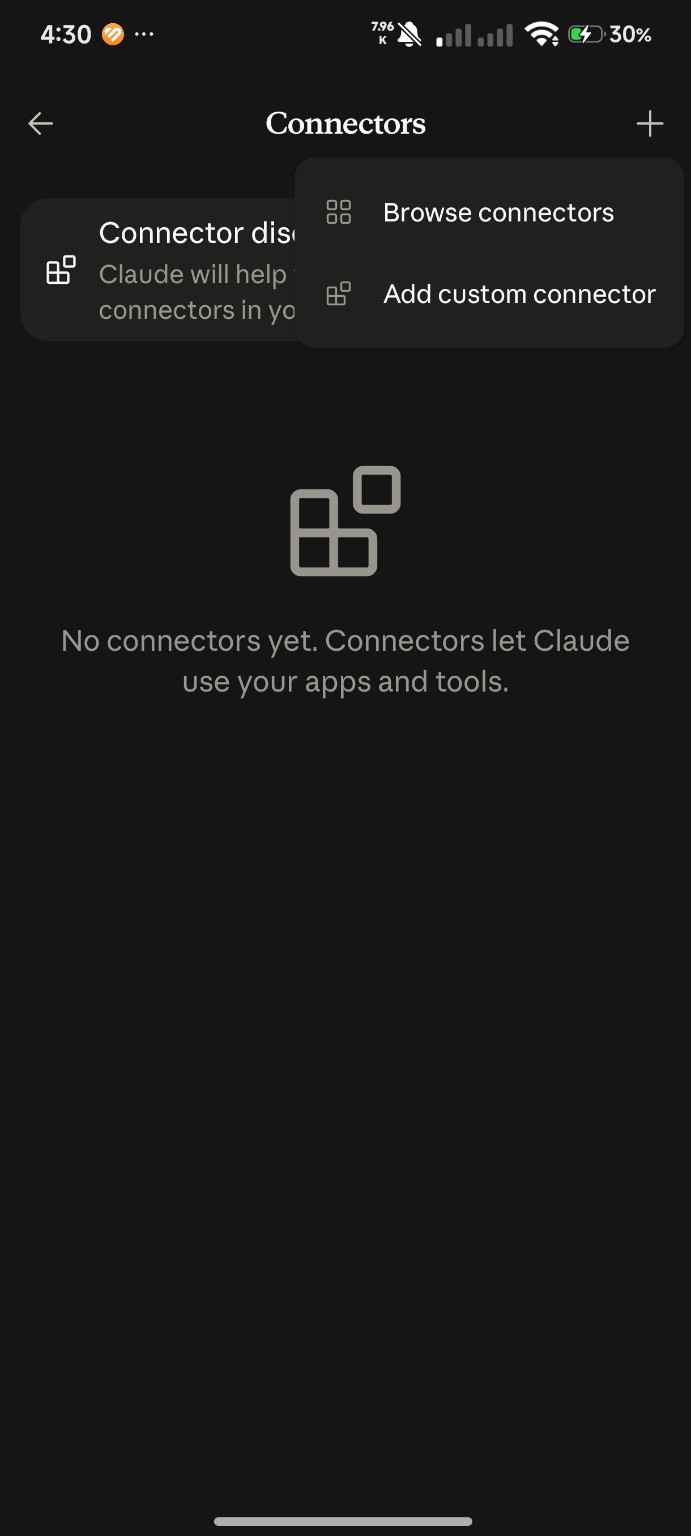
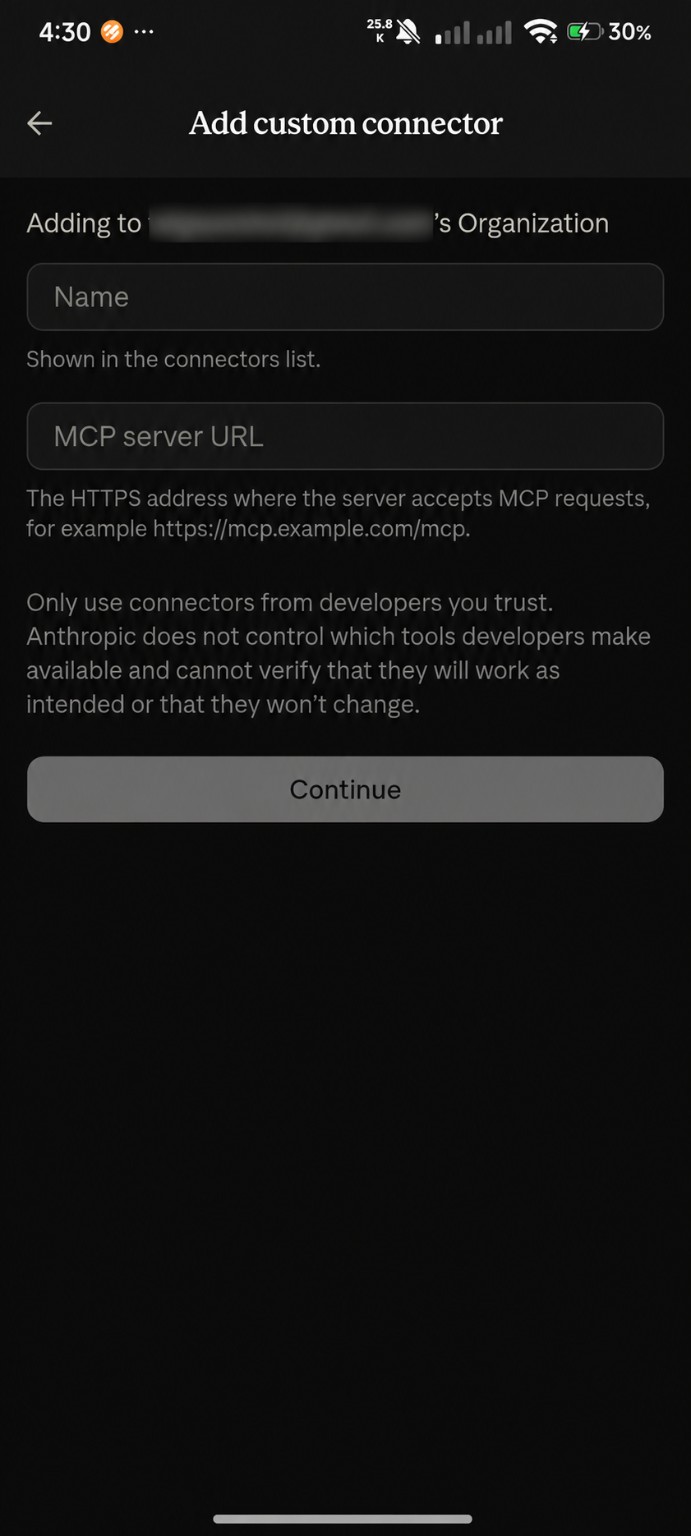
Claude Free: illustrated setup
Claude Free supports one custom remote MCP connector. These screenshots supplied by Tony show the mobile interface; labels vary by version. If the option is unavailable, open claude.ai in a browser, optionally using desktop-site view.
Pair, approve locally, then prove it works
Use the b3 guide for your platform: Windows has protected PowerShell helpers; Linux has the installed protected operator-linux.py, run with distribution Python. OAuth pairing and administrative approval are separate steps.
- Complete OAuth pairing. Open the connector’s pairing page. Generate the short-lived owner code locally only while that page is open, enter it only at your own Aster HTTPS origin, and finish the callback promptly.
- Inspect and approve the exact client locally. In a trusted local administrator terminal, compare the registered client_id and callback with the intended pairing transaction. Approve only that exact client using the platform guide. A remote tool request cannot approve itself; no administrative grant is automatic.
- Check this connector’s status. Call connection_status with {}. Match client_id to the local approval and require status: "approved", admin_approved: true and the needed permission flags. Read default_workspace, listing_base and directory_listing. Approved status alone does not prove that a command ran.
- Run harmless native commands. Use the platform-specific tool and separate command calls below. Read the actual structured results before marking setup complete. A connected label, HTTP 200 or a successful directory listing is insufficient.
ADMIN_APPROVAL_REQUIRED or status "approval_required": return to trusted local client inspection and exact-client approval, then check status again. Do not repeat OAuth pairing solely because the administrative grant is missing.
AUTHORIZATION_STATE_UNAVAILABLE indicates a protected approval-state problem; diagnose it locally. OAUTH_SCOPE_REQUIRED indicates a credential-scope problem that a local grant cannot repair.
ChatGPT Pro: add a custom MCP server
On the ChatGPT website, open Plugins → + → Add custom MCP server. Enter a name, your HTTPS /mcp URL and the OAuth settings for Aster. Review the requested access, create the plugin, install it and complete owner pairing. Older interfaces may call this Apps, Connectors or Developer mode. Pro is the target account tier here; available tools and write permissions depend on your account, workspace and rollout. A successful connection does not prove this Aster build has passed every client test.
Open ChatGPT Plugins ↗Verify actual command execution
Call each example separately through the intended connector. Omit cwd for these checks so the configured command workspace is used. Windows and Linux use different tool names.
Windows · execute_command
{"command":["C:\\Windows\\System32\\hostname.exe"],"timeout":10}
{"command":["C:\\Windows\\System32\\whoami.exe"],"timeout":10}
Linux · run_command
{"command":["/bin/hostname"],"timeout":10}
{"command":["/usr/bin/id"],"timeout":10}
{"command":["/usr/bin/whoami"],"timeout":10}
For each result, require status "completed", exit_code 0 and the expected hostname/account; Linux privileged commands run as root. Inspect stdout and stderr. Finish setup only after both approval status and the actual native calls succeed. Preserve and diagnose a failed transaction before repeating pairing.
Paths, working directories and access
For list_directory, choose a path. For commands and jobs, choose cwd. Read listing_base and default_workspace in connection_status; an operator can configure them differently.
- Linux b3: an approved client may list explicit absolute paths such as / or /etc wherever root can read. The default path "." and all relative listing paths remain confined to the fixed listing_base, even after approval. Before approval or after grant removal, authenticated listing stays confined.
- Windows b3: every directory listing requires administrative approval. Explicit absolute paths such as C:\Windows use the gateway account’s access rights.
- Commands are independent calls. A previous cd does not change later calls; provide cwd each time another directory is needed. The default workspace is a starting directory, not a filesystem sandbox.
Grant removal applies to subsequent calls. It is not OAuth credential-family revocation and does not cancel already accepted jobs. Follow the protected disable/stop procedure for full remote shutdown and reconcile outstanding jobs separately.
What passes through the connection?
Files stay on your computer unless a tool reads or transfers them. Requested content and command output may be sent to the AI provider, and tunnel traffic passes through Cloudflare. This is not an offline AI system. Approved tools use the gateway account’s privileges on Windows and root privileges on Linux; the workspace is not a command sandbox.
Installation & official references
- Claude remote connectors ↗
- ChatGPT custom MCP setup ↗
- Cloudflare named tunnel ↗
- Quick Tunnel limitations ↗
Screenshots illustrate setup and do not establish b3 account acceptance. The owner waived repeating the Claude-account test for b3; no fresh b3 account observation is claimed. Native and controlled HTTPS evidence is documented in the release guide. Account details are obscured. UI checked 23 October 2026; account access and labels can change.
A few honest answers
Do I have to donate?
No. Donations are entirely optional. The same software license applies whether you support the project financially or not.
Can I use it for commercial work?
Yes. Apache License 2.0 permits personal and commercial use, modification and redistribution subject to its terms. Optional professional assistance is separate.
Can I download it now?
Yes. Windows and Linux Beta v0.1.0b3 are available above. Download the matching archive, verify its SHA-256 and follow its release guide, including local administrator approval. Previous releases remain available; existing installations do not upgrade automatically. This is a manual technical beta.
Does my AI keep working after I close a chat?
Host background jobs can continue. Continuous AI reasoning and idle-session wake require a supported runtime; native multi-AI session wake is not an accepted feature of this distribution.